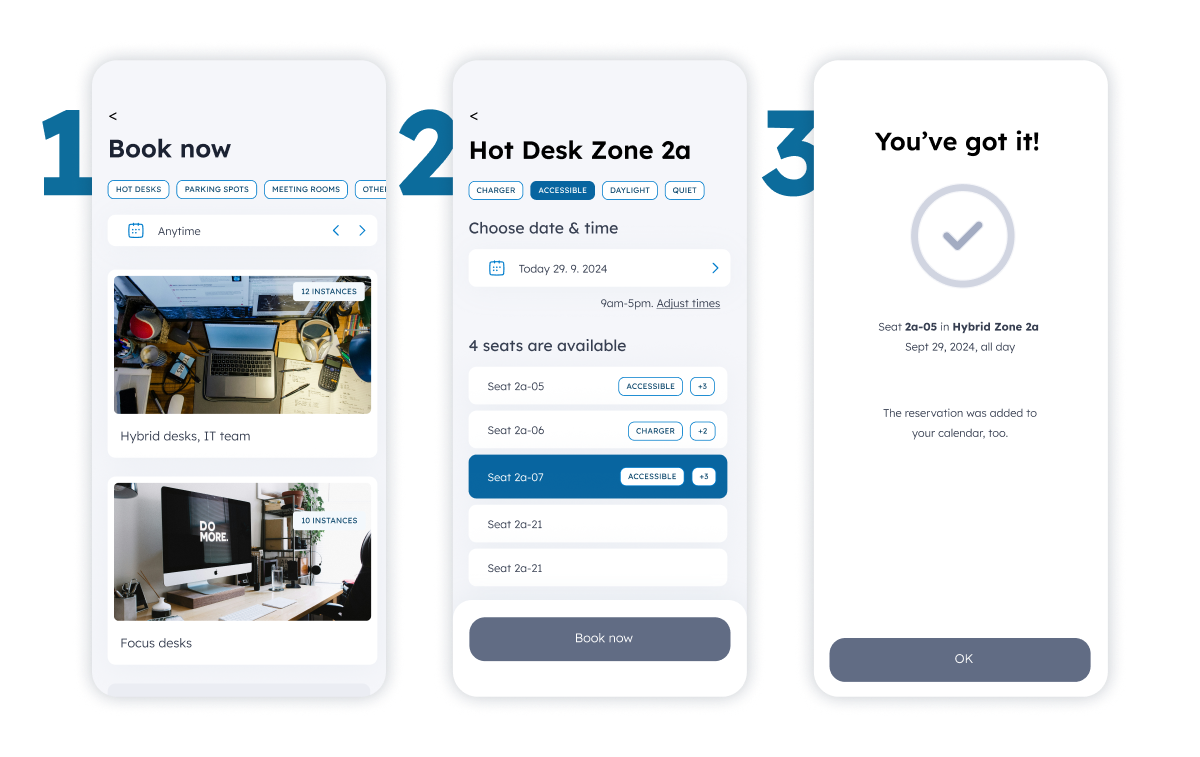
The module support easy booking creation and management from both PortalWX and
Who can manage which bookings
- Employee (a user without PortalWX access and "book asset" permission) can manage their own bookings.
- Company admin can manage bookings of all employees from their company.
- Asset admin (Employee of company who owns the asset with "Manage Booking Assets" permission) can manage all bookings of all users in given company.
How to book a parking spot from PortalWX
Go to the "Amenities" module > "Bookings" > choose the "Parking spots " from the category drop-down
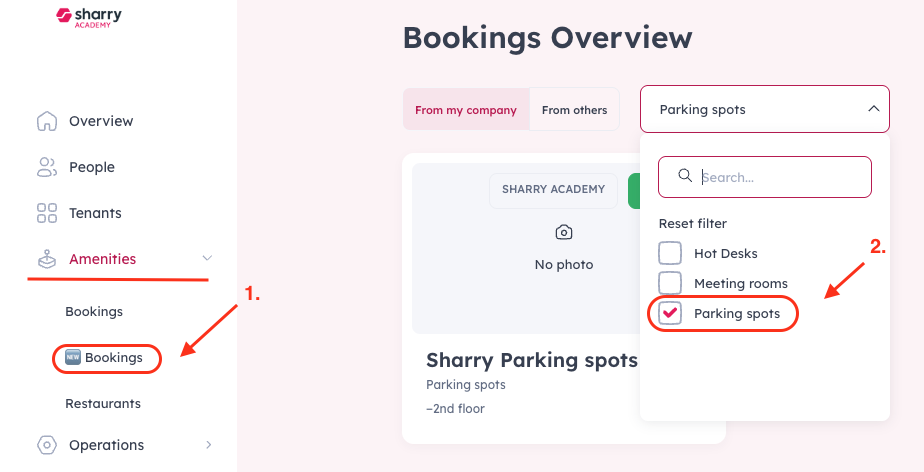
- Browse available parking spots
- Select a parking spot and click on the "New reservation" button, and proceed with the reservation details
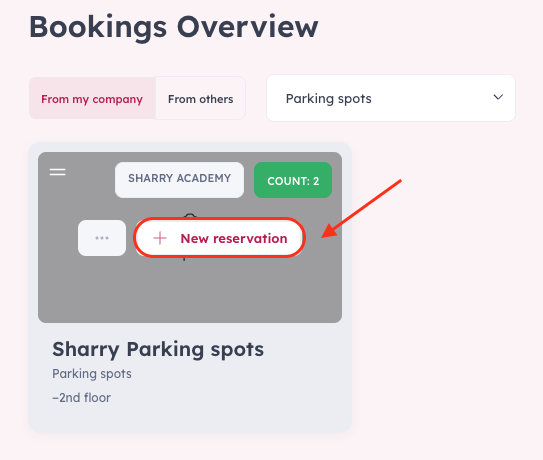
- Choose date/time; select a specific spot or accept an assigned spot from the pool
- Confirm booking and add license plate information
Manage/edit/cancel from PortalWX
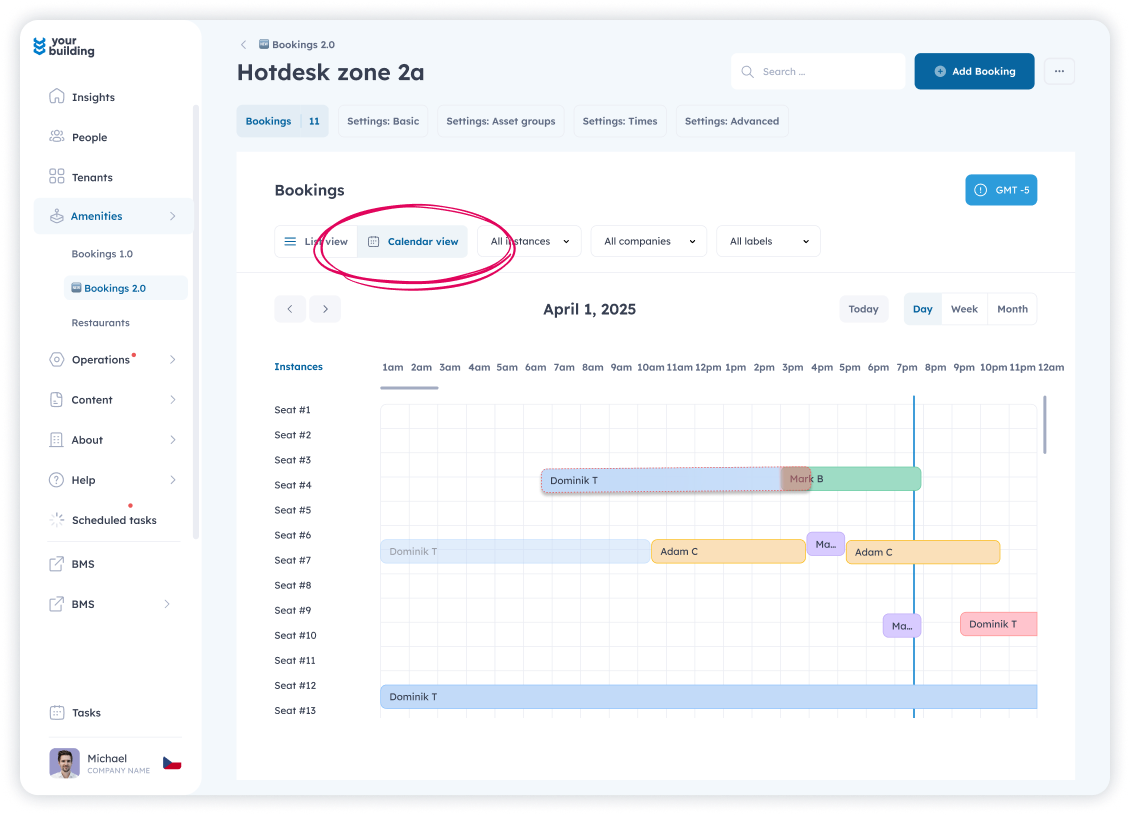
Open Bookings → Calendar view (or list view)
- Switch to calendar view and move booking around bookings as needed or click a specific booking to choose time & date
Tips
- Keep your/employee license plate up to date to avoid gate issues
- Cancel unused reservations early to free capacity
How to book a parking spot from the app
Booking from the app is easy:
- Make sure the user has appropriate permission AND assets of a specific type, with company and (if applicable) location in Audience exist.
- User will see "Book a parking" (if assets with type parking meet condition 1) or "Book a hotdesk" (if assets with type "Hotdesk" meet condition 1).
- User proceeds through a simple booking UI, chooses the spots and confirms the booking.