
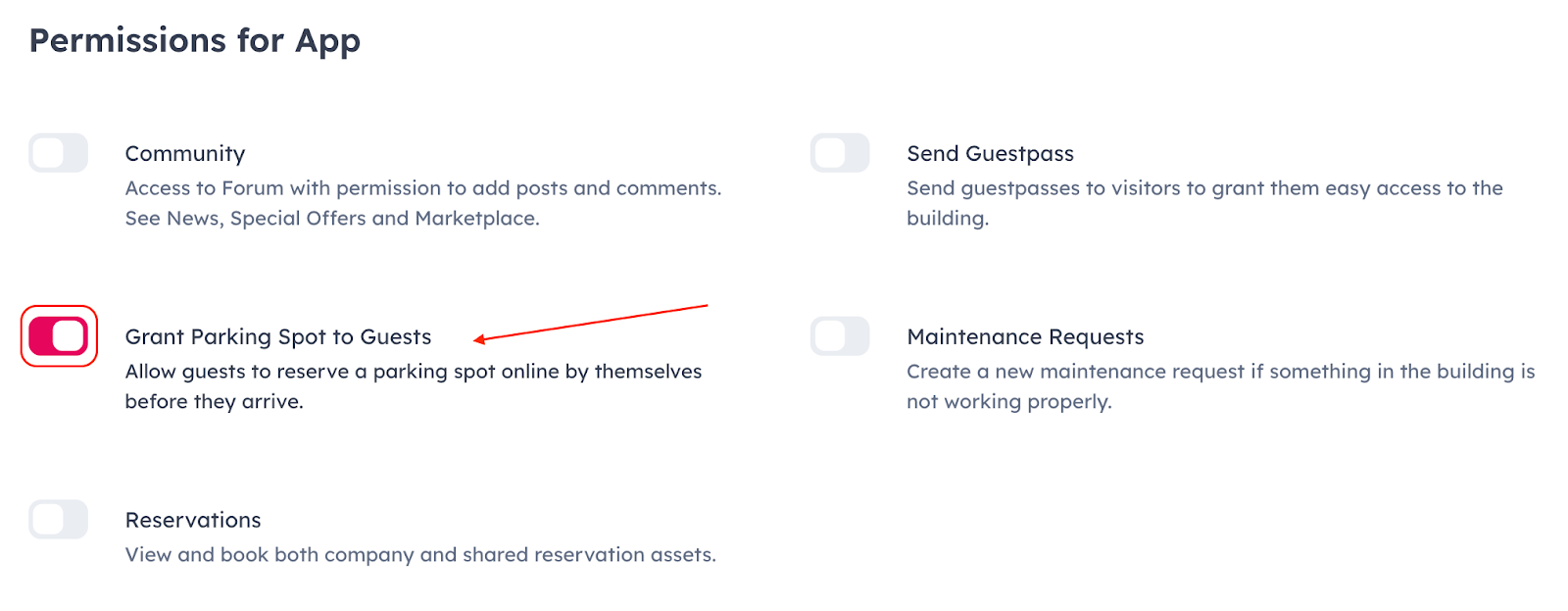
Requires: for the app — Grant Parking Spot to Guests (Mobile App Permissions); for PortalWX — Guestbook, Send Guestpass and Grant Parking Spot to Guests (PortalWX Permissions). See Which permission do I need for….
Give your employees permission to reserve a parking spot for their guests.
Go to the “People” module > choose the employee > enable Grant Parking Spot to Guests under Mobile App Permissions (for the app) and under PortalWX Permissions ▸ Guestbook (for PortalWX).
There are three ways to allow the guest to use the parking.
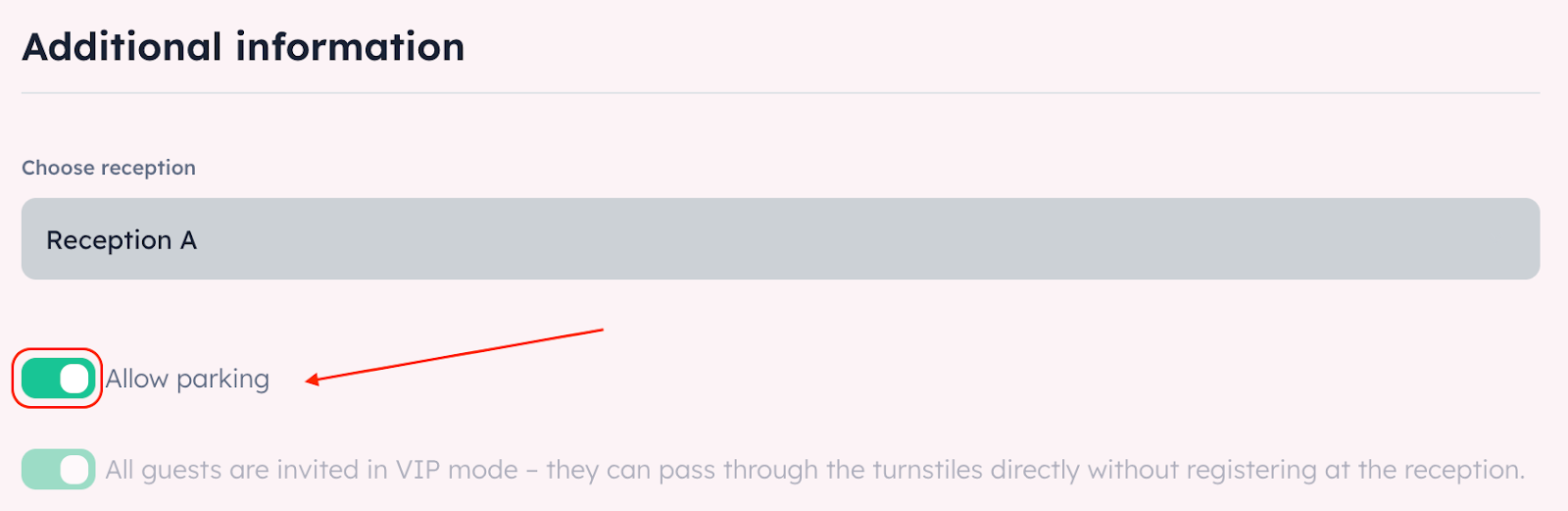
PortalWX: Invite the guest via Guestbook and enable the “Allow parking” toggle.
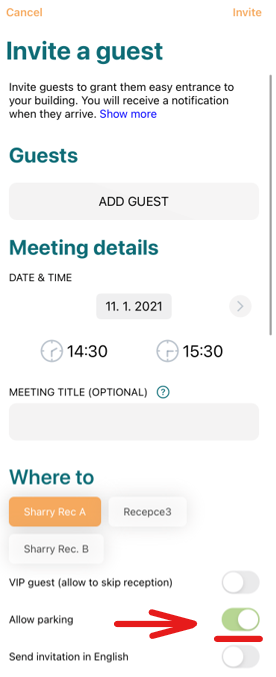
Mobile App: Users can invite guests via the app and allow their guests to use the parking.
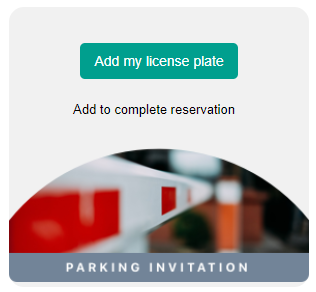
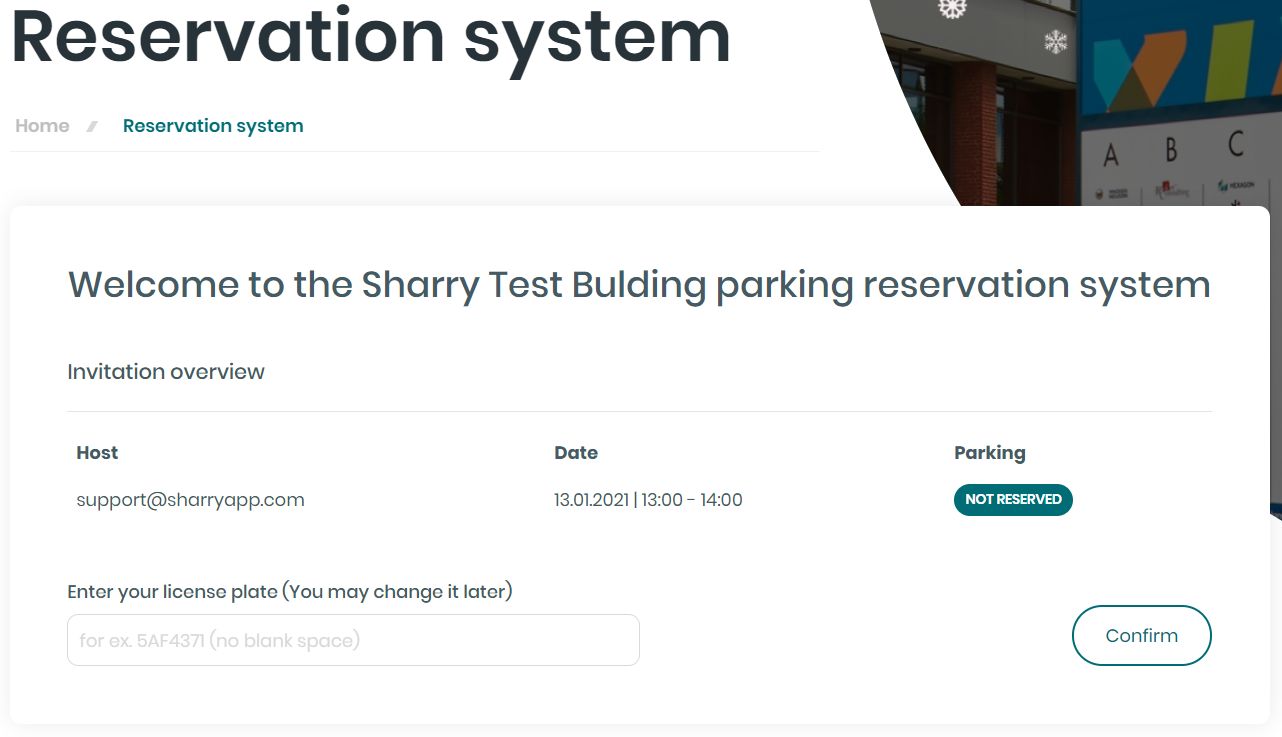
Afterwards, the guest receives an invitation email. They need to click on the “Add my license plate” button and fill in their license plate in the Reservation system.
Also, the host receives an email with a link to the Reservation system, where the host can fill in the guest’s license plate.
A special email address park.at.
In order to allow parking reservations for your guests you can add a special virtual reception email address in the required email field:
example: park.at.building-name@sharryapp.com
You can allow parking reservations to as many guests as you need. Just add their email addresses to the same invitation.
You can also easily create a multi-day pass by creating an event for multiple days.
Your guests receive an invitation email.
With QR code if there is a QR scanner available when entering the parking spot